Screenshot capture and annotation editor
English | Українська
⬇ Download latest release (Windows x64, ZIP)
From v0.6.0, capturing a screenshot copies it straight to the clipboard. Windows displays a notification with a thumbnail, and the editor opens when you click that notification.
Open from clipboard history (v0.6.20)
An image already copied to the clipboard does not require a new capture or Paint. Select it in clipboard history, then choose Edit image / Ctrl+O or Edit image in screenshot editor in the context menu. The editor receives a full-resolution copy through the local encrypted cache; this action does not require Windows notifications. The original entry and current clipboard remain unchanged until you explicitly copy the edited result.
Quick start
- Press Win+Shift+S or choose Capture screen region… in the tray menu. Change the shortcut in Settings → Screen capture.
- Drag a rectangle. The screen dims while the selected region stays bright. Esc cancels capture.
- The screenshot is already on the clipboard: paste it into another application with Ctrl+V.
- To annotate it, click Screenshot copied → Click to edit and annotate in the notification.
- In the editor, press Ctrl+C or click Copy. The window stays open so you can continue editing.
If Windows notifications are disabled or cannot be sent, the editor opens immediately after copying.
Tools
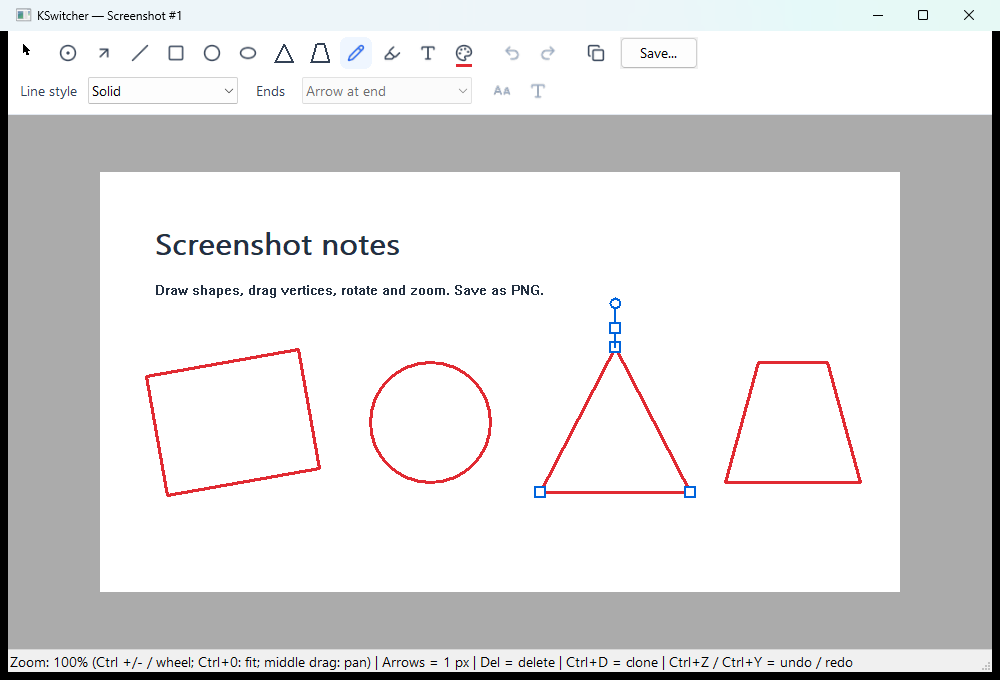
This is the actual editor with a neutral demonstration image. The status bar at the bottom shows contextual hints.
| Tool | Key | Features |
|---|---|---|
| Numbered marker | N | Move and resize; new numbers fill gaps first |
| Arrow | A | Move endpoints, change thickness, add labels and link endpoints to numbered markers |
| Straight line | L | Solid, dotted, dashed or dash-dot strokes |
| Rectangle | R | Move and resize |
| Circle / ellipse | O / E | Outline shapes |
| Triangle | G | Three independently draggable vertices and rotation |
| Trapezoid | B | Parallel bases, resizing and rotation |
| Pencil | F | Freehand drawing; selected by default |
| Highlighter | H | A translucent stroke over the image |
| Text | T | Type directly on the image; choose font, size and rotation |
The palette changes the selected object's color and the color of new objects. Line style sets the stroke pattern; Ends selects an arrowhead at the start, end, both ends or neither end.
Pencil smoothing and shape recognition (v0.6.24)
After releasing the mouse, Pencil recognizes nearly straight strokes as lines (see v0.6.25 below), otherwise lightly smooths the stroke and tries to recognize a rectangle, circle, ellipse, triangle or trapezoid, including tilted outlines. Uneven ovals can have a small closing gap or overlap; trapezoid bases are fitted to parallel lines. Recognized outlines become shape objects, not pencil curves.
Ctrl+Z immediately after improvement restores the exact original stroke; a second undo removes it. Ctrl+Y reapplies the improvement. Small strokes, strokes linked to other objects and any stroke drawn partly with Shift stay unchanged. Recognition is heuristic: ambiguous drawings may only be smoothed, and an incorrect guess can be undone.
Automatic straight lines (v0.6.25)
Draw a nearly straight stroke with Pencil (F) and release the mouse. KSwitcher replaces it with an editable straight line at the angle you drew, preserving the endpoints, color, thickness, line style and arrowheads. Drag either endpoint to adjust the line.
Example: a slightly shaky diagonal becomes one straight diagonal segment; it is not forced to horizontal, vertical or 45°. Ctrl+Z restores the exact original pencil stroke, a second undo removes it, and Ctrl+Y reapplies recognition.
Recognition is conservative: the endpoints must be at least 24 source-image pixels apart, and short strokes, noticeable curves, spikes or substantial backward tracing are not straightened. Linked strokes and strokes drawn partly with Shift retain their existing behavior. If a stroke is not recognized, draw it again or choose Straight line (L) for an exact line. The existing toolbar screenshot remains representative; this feature adds no new controls.
Shapes and rotation (v0.6.24)
Use Triangle (G) or Trapezoid (B) on the toolbar to draw these shapes directly. Both drawn and recognized triangles have three independent vertex handles: dragging one keeps the other two fixed, even after rotation. Rectangles, circles, ellipses and trapezoids use two bounding-box resize handles; circles retain equal width and height.
Every shape has a round rotation handle. Drag it to rotate around the center; hold Shift for 15-degree steps. The square handle controls outline thickness. Rotation works with canvas zoom, resizing, cloning, attached connectors and PNG export. Triangle vertex edits and rotation support undo/redo. Trapezoids currently use bounding-box resizing rather than independent vertex editing.
Canvas zoom and pan (v0.6.24)
- Ctrl++ / Ctrl+-, including numpad keys: zoom around the viewport center in factors of 1.25.
- Ctrl+mouse wheel: zoom around the cursor.
- Ctrl+0: restore the initial fit.
- Middle-button drag: pan the enlarged image.
The range is 0.1×–16× the initial fit; the status bar shows the actual image scale. Zoom/pan never changes annotation coordinates, export resolution or undo history. The mouse wheel without Ctrl still changes the object under the cursor. If you lose your place, use Ctrl+0.
Edit objects
- Drag an object to move it or its handles to resize it. The cursor indicates the available action.
- The mouse wheel without Ctrl changes the size of the object under the cursor: line thickness, marker diameter or text size. A separate handle beside the line also adjusts thickness.
- Arrow keys move the selected object by one image pixel.
- Ctrl+D duplicates an object; Delete removes it.
- Ctrl+Z undoes; Ctrl+Y or Ctrl+Shift+Z redoes.
- Ctrl+drag draws over existing objects.
Text and labels
Double-click or press F2 to edit text or the selected line's label. Enter adds a line, Ctrl+Enter finishes editing and Esc cancels the current text edit. Font and size opens the font dialog.
Rotate text using its circular handle; hold Shift to snap to 15° increments. Arrow labels automatically follow the arrow's angle until you rotate the label manually. Moving the label does not disable automatic angle tracking.
Multiple screenshots
Capture new screenshots while an editor is open. Each window has its own index, such as Screenshot #1, #2…, and appears in Alt+Tab. Esc does not close the editor. Closing requires confirmation if there are changes you have not saved or copied yet.
Processes and temporary files
Capture and editing run in a separate KSwitcher.Screenshot.exe, started on demand and closed after its last window closes. The main KSwitcher application stays in the tray.
Notifications expire after 24 hours. Cached originals are encrypted with Windows DPAPI. Small PNG previews are stored in a separate private ProgramData cache accessible to the current user and SYSTEM. Old files are cleaned up during subsequent operations; each cache is limited to 40 files and 256 MiB. This is a temporary cache, not a screenshot archive.
See also: Clipboard history · Keyboard shortcuts · Updates.
v0.6.8: default drawing tool
The editor starts with Pencil / Freehand (F). Use Pointer (V) to select and edit objects without drawing. New captures are recognized in the background for text search; see OCR and optional Tesseract.
Constrained pencil strokes (v0.6.17)
Hold Shift while drawing with Pencil to constrain a segment to horizontal, vertical or 45-degree diagonal. Release Shift to continue freehand within the same stroke. Move more than 50 image pixels away from the active line to change direction while retaining earlier segments. Diagonal strokes keep their angle at image boundaries. Ctrl still draws over existing objects; Undo/Redo treats the complete stroke as one object.
Save as PNG (v0.6.23)
Click Save… or press Ctrl+S to save the full-resolution image and annotations as PNG. The first save asks for a filename; subsequent saves overwrite that same file. Ctrl+Shift+S always opens Save As to choose another destination. The dialog asks before replacing an existing file; use a .png extension. Cancelling leaves the remembered destination and unsaved state unchanged.
Saving commits active inline text editing, keeps the editor open and leaves the clipboard unchanged. Later edits must be saved or copied again; otherwise closing asks for confirmation. A failed save retains the previous destination and unexported state. PNG is a flattened image, not an editable annotation project.