KSwitcher — keyboard layouts and clipboard
English | Українська
⬇ Download latest release (Windows x64, ZIP)
KSwitcher is a small native Windows 10/11 x64 application written in C++/Win32. It fixes text typed with the wrong keyboard layout, keeps clipboard history, expands snippets, and captures and annotates screenshots. It runs from the system tray and requires no .NET or additional runtime.
KSwitcher is a native C++/Win32 rewrite of the Windows functionality of Typlo.
Features
| Feature | What it does |
|---|---|
| Layout correction | Converts selected or recently typed text, such as ghbdsn → привіт |
| Layout switching | A configurable layout cycle and a separate shortcut for each language |
| Auto-correction | Experimental layout detection using local dictionaries |
| Text tools | Case conversion, transliteration and Undo |
| Clipboard history | Text, images and file lists, with search, pinning and quick paste |
| Previews | Image thumbnails and support for HTML/RTF formatting |
| OCR | Local image recognition: Windows OCR or optional Tesseract |
| Snippets | Text templates, multiline content and cursor positioning |
| Shortcuts | Record a shortcut by pressing its keys, including ordinary Windows shortcuts |
| Screenshots | Win+Shift+S → clipboard → thumbnail notification → annotation editor |
| Settings sync | Optional OpenBao, per-setting conflicts and snippet deletion tracking |
| Startup | Start with Windows, optionally as administrator |
Quick start
- Download the ZIP from Releases and extract the entire archive into a permanent folder.
- Run
KSwitcher.exe. Keep thedictionariesfolder beside the application. - Double-click the tray icon to open Settings.
- In Layout cycle, enable the layouts you need and arrange them using Move up / Move down.
- Adjust shortcuts as needed and click Save.
To correct text manually, select it and press Next layout. With Convert recently typed text when nothing is selected enabled, you can correct recently typed text without selecting it first. Switch Windows input layout after conversion also changes the layout for subsequent typing.
Features in screenshots
Examples use demonstration data. Changed Settings and auto-correction screenshots were removed for v0.6.28; use the current written steps and replacement examples.
1. Layout correction
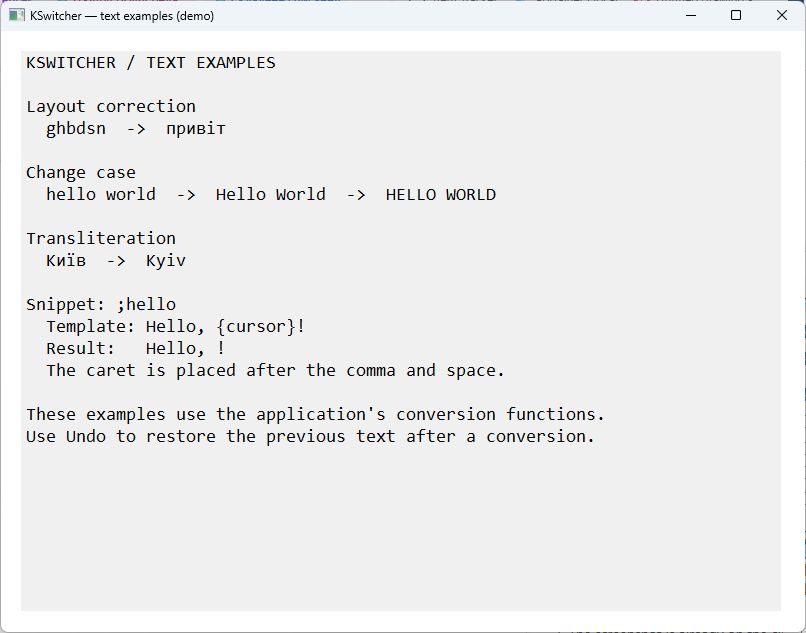
Select ghbdsn and use Next layout to get привіт. Enable recent-text conversion to do the same without selecting it. The image is a demonstration window showing results from KSwitcher’s conversion functions, not an additional application dialog.
2. Layout switching
Enable languages in Layout cycle, arrange them with Move up / Move down, and assign Direct layout shortcut to jump straight to a language. Available layouts come from Windows.
3. Auto-correction
Type hj,bnm followed by Space to get робить when Ukrainian is enabled and the word is in its dictionary. Add correct spellings in My dictionary. Resize this dialog to give the three dictionary editors more space.
4. Text tools
Change case cycles hello world → Hello World → HELLO WORLD. Transliterate converts Київ → Kyiv; Undo restores a conversion. This demonstration shows actual conversion-function results.
5. Clipboard history
Open history with Win+V, search for an earlier item, and press Enter to paste it. Ctrl+P pins an item; Shift+Enter pastes plain text. Text, images and file lists are supported.
6. Previews
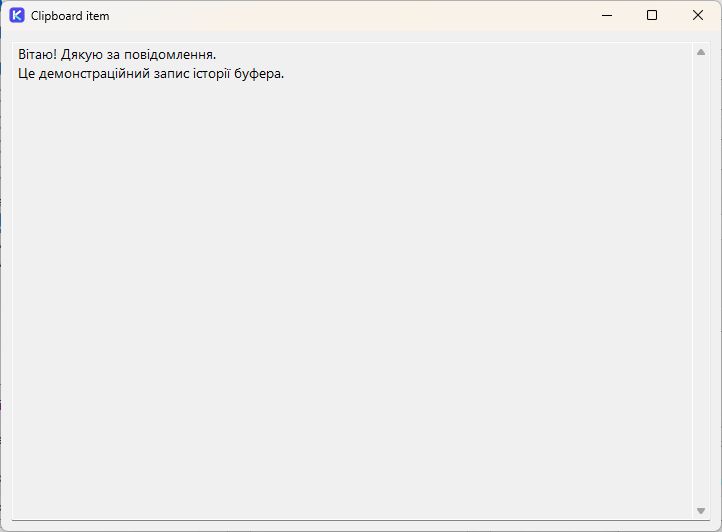
Select an item and choose Open item / Ctrl+O to read its full contents; the screenshot shows a multiline text entry. Image entries have thumbnails. HTML/RTF can preserve formatting when pasted; use plain-text paste when you do not want it.
7. OCR
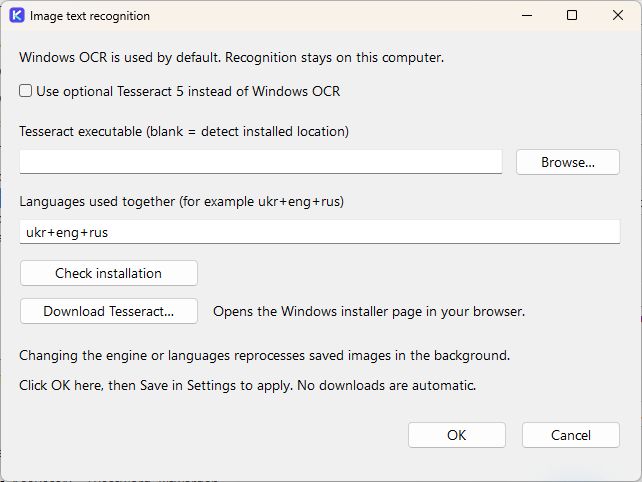
Images are recognized locally in the background, so searching a word can find its source image. Use Windows OCR or enable an installed Tesseract 5 with models such as ukr+eng+rus. Check installation checks availability; OK → Save applies the choice.
8. Snippets
Use ;hello for a greeting, ;thanks for a signature, or ;check for a multiline checklist. {cursor} positions the caret inside the expanded text. Triggers work across keyboard layouts.
Example: ;run → rider .{enter} (insert text and press Enter).
9. Shortcuts
Click a shortcut field, press the desired combination, then Save. Backspace / Delete clears a field. Existing shortcuts survive updates; ordinary Windows combinations such as Win+V can be assigned.
10. Screenshots
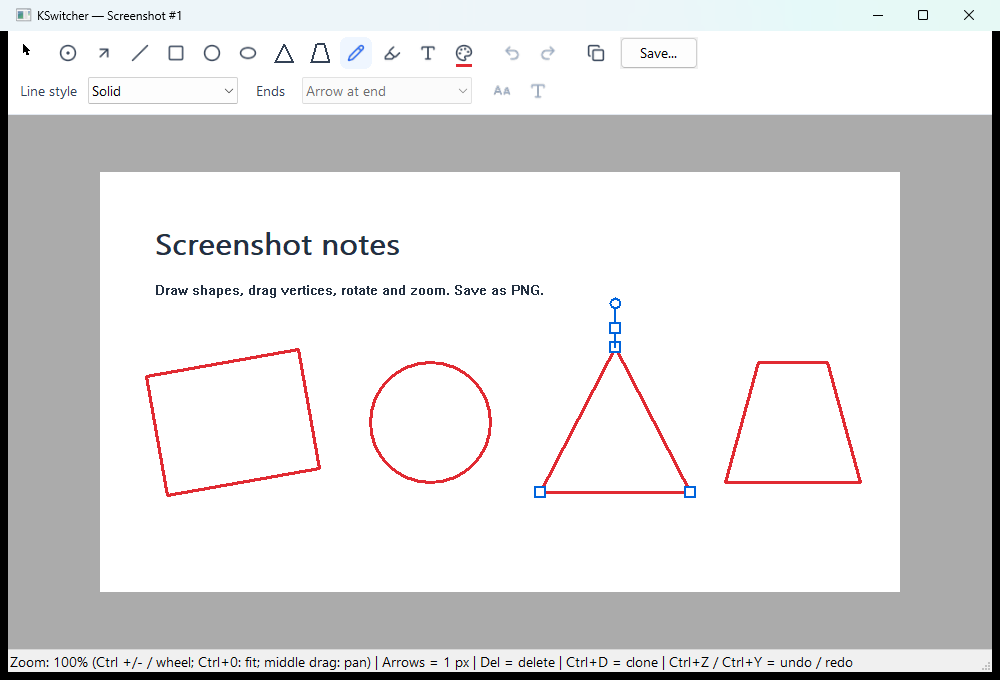
Press Win+Shift+S, capture a region, and open the thumbnail notification to annotate it. Add arrows, numbers, highlights, text or shapes, then copy the result or save PNG with Ctrl+S. The editor initially selects Pencil (F); this example shows the Save button and demonstration annotations.
11. Startup
Enable Start with Windows. For elevated target applications, optionally enable Start with Windows as administrator and confirm Windows UAC. Saving this setting does not elevate an already running process.
Detailed guides
- Auto-correction and dictionaries
- Keyboard shortcuts, clipboard and snippets
- Updates, data and frequently asked questions
Documentation is current through v0.6.30. The application interface is in English. This wiki is available in English and Ukrainian; use the language links at the top of each page to open its translation.
Donate via Monobank · Thank you for supporting KSwitcher!
Recent changes — v0.6.30 (2026-11-02)
Confirmed failed pastes no longer seed repeat conversion or switch the Windows layout. One guarded retry is available for native EDIT fields with an unchanged original selection and Write log enabled. This is not a general fix for asynchronous browser-editor selection.
Details · Download v0.6.30 · SHA256SUMS.txt
Previous release — v0.6.29 (2026-11-02)
Clear history… / Alt+H is now directly in the clipboard history window. Confirmation deletes all entries, including pinned and search-hidden items; No is the default. The current Windows clipboard and future history recording are unchanged.
Clipboard guide · Download v0.6.29 · SHA256SUMS.txt
Previous release — v0.6.28 (2026-11-02)
Custom automatic replacements and dictionary typo correction; merge on first connection; partial sync preserving each PC’s layouts; actionable missing-layout errors; detailed selection and clipboard diagnostics.
Auto-correction · Sync · Diagnostics
Download v0.6.28 · SHA256SUMS.txt
Previous release — v0.6.27 (2026-11-02)
Menus support selection by underlined letter; form buttons and checkboxes support Alt+letter. For example, S opens Settings in the tray menu and Alt+S saves Settings. Also available in clipboard history, snippets, logs, synchronization, OCR and dictionary dialogs.
Access keys · Download v0.6.27 · SHA256SUMS.txt
Previous release — v0.6.26 (2026-11-02)
Settings → Sync… connects to your own OpenBao KV v2. Checks run at startup, every 10 minutes and after saving settings. Resolve conflicts per setting; snippets have stable IDs and tracked deletions. Personal dictionaries and exclusions merge independently. Disabled by default; update all participating PCs for sync format 2.
Setup, conflicts and recovery · Download v0.6.26 · SHA256SUMS.txt
Previous release — v0.6.25 (2026-11-01)
Pencil (F) now turns a nearly straight stroke into an editable straight line when you release the mouse. It keeps the drawn angle, endpoints and style. Ctrl+Z restores the original stroke; short strokes, noticeable curves and backward tracing are not straightened.
Drawing examples and limitations · Download v0.6.25 · SHA256SUMS.txt
Previous release — v0.6.24 (2026-11-01)
Pencil smoothing and recognition of rectangles, circles, ellipses, triangles and trapezoids; Triangle (G) and Trapezoid (B) tools; shape rotation and independent triangle vertices. Zoom with Ctrl++ / Ctrl+- or Ctrl+wheel, reset with Ctrl+0, pan with the middle button. Ctrl+Z can restore the original pencil stroke.
Full editor guide · Download v0.6.24 · SHA256SUMS.txt
Previous release — v0.6.23 (2026-11-01)
Save annotated screenshots as full-resolution PNG with Save… / Ctrl+S; use Ctrl+Shift+S for another destination. The bundled dictionary now includes поточні for Gjnjxys + Space → Поточні. Chrome and Edge use paced text selection; the reported browser-editor case still needs live verification.
Existing dictionaries are preserved during updates. If the new word is missing, add поточні to My dictionary → Ukrainian, then OK → Save.
Auto-correction · Screenshots · Usage · FAQ
Download v0.6.23 · SHA256SUMS.txt
Previous release — v0.6.22 (2026-10-31)
From v0.6.22, recent-text conversion, repeat conversion and undo can recover a partial selection. If copying returns a verified suffix of the expected text, KSwitcher extends the selection with paced Shift+Left presses and copies again. It replaces text only after the complete expected range is verified. Recovery is attempted once; an empty or unrelated range is not extended, and a changed input context still cancels the operation.
Recent-text verification maps physical keys through convertible layouts, including Cyrillic and mixed case. Examples include Switcher from PuntoSwitcher , зштп from the layout equivalent of snipping , and лувШт from LinkedIn . Diagnostics now include the expected previous result and suffix-recovery stages. Shortcut assignments, layout-cycle settings and paste readback checks are unchanged.
Native regression tests cover suffix verification, and isolated-editor integration tests cover recovery of PuntoSwitcher and clipboard restoration. Direct validation in LinkedIn and ChatGPT is still outstanding. Editors may process simulated input differently; if full verification fails, conversion is cancelled. Include the copied diagnostic details when reporting another failure.
Download v0.6.22 · SHA256SUMS.txt
Previous release — v0.6.21 (2026-10-31)
From v0.6.21, Next layout skips enabled layouts whose conversion leaves the text unchanged, following the configured cycle until a changed result is found. Russian рф skips Ukrainian and becomes English ha; Ukrainian шььш skips Russian and becomes English immi when English follows in the configured cycle. Each candidate is calculated from the original text. Only enabled convertible layouts are considered.
If none changes the text (for example, 123 or shared letters with only Russian and Ukrainian enabled), the text stays unchanged and the operation advances one layout. The Windows input layout switches only when Switch Windows input layout after conversion is enabled. Direct layout shortcuts still target the chosen language. Default shortcuts and automatic correction are unchanged.