Clipboard history
English | Українська
⬇ Download latest release (Windows x64, ZIP)
KSwitcher records copied text, images and file lists. Use history to retrieve an earlier item, paste without formatting, pin useful entries or extract text from a screenshot.
Enable and open history
Enable Record clipboard history in Settings. Open history from the tray menu or with the Clipboard history shortcut. From v0.6.1, the default for new settings is Win+V. Previously saved shortcuts are preserved; you can change them in Settings. While KSwitcher is running, an assigned Win+V opens its history instead of Windows clipboard history.
Search and paste
Type part of the text into Search clipboard history. Results show a preview, item number and source application. Images have thumbnails. Text may display HTML/RTF formatting; rendering depends on the original content.
- Before opening history, place the cursor in the target application's input field.
- Open history, find and select an entry.
- Use Paste / Enter to paste it or Plain text / Shift+Enter to paste unformatted text.
From v0.6.0, the list and search field resize with the window, while the action buttons stay at the bottom. When the window is very small, controls remain accessible by scrolling.
Commands
| Shortcut | Action |
|---|---|
| Enter | Paste the selected entry into the previous window |
| Shift+Enter | Paste plain text without formatting |
| Ctrl+1 … Ctrl+9 | Quickly paste an entry from the list |
| Ctrl+P | Pin / unpin |
| Delete | Delete the selected entry |
| Ctrl+O | Open text or edit an image |
| Esc | Close history |
The Pin / unpin, Delete and Open item buttons provide the same main actions. Right-click an entry for additional commands.
Edit an image from history (v0.6.20)
Select an image: Open item changes to Edit image. Click it or press Ctrl+O; alternatively right-click the desired entry and choose Edit image in screenshot editor. The full-resolution original opens in the built-in editor, including images copied from other applications. PNG, DIB and DIBV5 are supported; images that cannot be decoded or exceed the 128 MiB transfer limit report an error.
Example: select a screenshot → Edit image → add an arrow → Ctrl+C in the editor → paste the result into your destination. Opening the editor changes neither the current clipboard nor the original history entry. Enter and double-click in history still paste the entry. For text, Open item / Ctrl+O opens the full text.
Images, OCR and screenshots
From v0.6.8, new images are recognized automatically in the background. Older images without OCR are processed once, newest first. After recognition, type a word from the image into Search clipboard history to find the original image. The list refreshes automatically when recognition finishes.
Search is case-insensitive and matches a literal substring. It filters entries while preserving their order. Enter and switching windows are not required: a typing pause of about 180 ms starts the search. Search runs separately from clipboard capture, previews and OCR, and avoids loading image payloads when the existing preview is enough to rule out a match.
Recognized text is saved with the image in a DPAPI-encrypted sidecar, reused after restart and removed with the image. Searching never reruns OCR. Automatic recognition does not change the clipboard or the original image. Empty results are remembered; pending work resumes after restart. Failures are logged without popup dialogs.
Choose Copy text from image (OCR) in the context menu to copy the cached text or explicitly retry failed recognition. Screenshot capture and copying edited results work as before; see Screenshots.
Windows OCR (default)
Windows OCR is native and offline. It chooses an available recognizer from your Windows profile languages. Keyboard layouts do not guarantee installed OCR models, and it does not run all languages automatically. Quality depends on the language, text size and image clarity.
Optional Tesseract: Ukrainian and mixed-language text
Tesseract is optional and disabled by default. It is not bundled or downloaded automatically. Both engines process images locally.
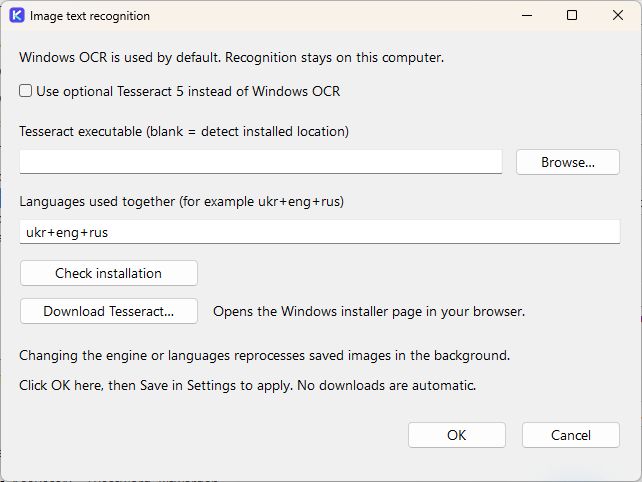
- Open Settings → OCR options…. Click Download Tesseract… to open the UB Mannheim Windows installer page in your browser. Install the 64-bit Tesseract 5 package and your desired language models. Upstream Source code archives are not Windows installers.
- Enable Use optional Tesseract 5 instead of Windows OCR.
- Leave the executable field blank to detect a standard installation, or select
tesseract.exewith Browse…. The neighboringlibtesseract-5.dll, its dependencies andtessdatadirectory are required. - Enter
ukr+eng+rusto recognize Ukrainian, English and Russian together, or another installed combination such asukr+eng. Missing models produce an error. - Click Check installation. Ready: ukr+eng+rus confirms availability only. It does not enable Tesseract or save settings.
- Click OK, then Save in the main Settings window.
Changing the engine, executable path or languages refreshes saved images' OCR in the background. Wait for that work before testing previously misrecognized words. Uncheck the option and save to return to Windows OCR. Only the selected engine is used, not both together. Tesseract has a 30-second recognition deadline per image.
If a word is missing, confirm the option is enabled and saved, allow OCR to finish, and inspect Copy text from image (OCR). Small, blurred or crossed-out text may be misrecognized. Search does not perform fuzzy spelling correction.
Limits and privacy
Settings → History limits controls the maximum number of entries, total storage in MiB and individual entry size. Clear history… clears history. Exclude applications excludes applications by process name; the tray menu also provides a temporary recording pause.
History and its index are encrypted with Windows DPAPI for the current user. Full images load on demand and the thumbnail cache is bounded. Use Open data folder to locate the data. Moving this encrypted history to a different Windows account is not supported.
The screenshots show demonstration entries created for this documentation.
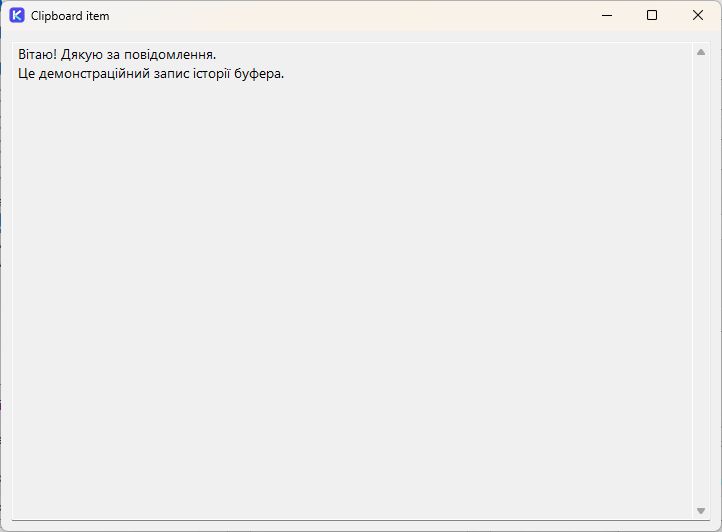
Full preview and OCR options
Temporary transaction contents (v0.6.19)
Temporary clipboard contents used for conversion and snippet replacement are marked to stay out of Windows clipboard history and cloud synchronization. This applies to KSwitcher's own transaction writes, not to ordinary copies made by other applications. The original clipboard snapshot is restored when the transaction still owns the clipboard; a concurrent writer's contents are not overwritten. Clipboard history settings and stored items are unchanged.
Access keys (v0.6.27)
In the history window: Alt+S focuses Search, Alt+P pastes, Alt+T pastes plain text, Alt+I pins/unpins, Alt+D deletes, Alt+O opens a text item, and Alt+E edits a selected image. The last action changes with the item type. Existing Enter, Shift+Enter, Ctrl+1…9 and Ctrl+O behavior is unchanged. The context menu also accepts its underlined letters without Alt while open; C copies OCR text. See access-key behavior and input layouts.
Clear all clipboard history — v0.6.29
Use Clear history… at the bottom of the Clipboard history window, beside Edit image / Open item. Alt+H activates it. Confirm with Yes to delete all saved entries, including pinned items and entries hidden by the current search. No is selected by default; cancelling leaves the history unchanged. This is not the Delete action, which removes only the selected entry. The button remains accessible when resizing or scrolling the window. The existing Settings → Clear history action is still available. Clearing history does not clear the current Windows clipboard or disable future clipboard recording.
Failed paste and repeat conversion — v0.6.30
When manual-conversion readback confirms that the expected replacement was not inserted (Original text remained or Readback differs), KSwitcher clears repeat-conversion state and does not switch the Windows layout. A subsequent command no longer keeps searching for a fictional previous result. A mismatch while verifying a previous result also clears that stale state.
For a writable native Windows EDIT field, KSwitcher may retry an ignored paste once. This requires Write log (which enables manual readback), readback equal to the original text, and fresh native checks showing exactly that original range still selected with the same focus and input context. Protected/read-only fields, other control types, changed selections and unknown readback are not retried. A confirmed failure after the retry still clears repeat state without switching layout; the transaction restores its clipboard snapshot when ownership is unchanged.
Example: converting =nhtdjuf to =тревога in a custom replacement field must not record =тревога as the previous result if the field still contains =nhtdjuf. The isolated native-editor test covers an ignored first paste and permanently blocked/changed paste results. The original cause of every ignored paste is not established, and this does not claim to fix all asynchronous selection behavior in ChatGPT or browser editors. Keep Write log enabled and share the complete operation details if it recurs.